|
Instructions | Troobleshootings | Hardware | Reports and Tutorials | What's New?
 Instructions for iFeelPixel TactileWare users Instructions for iFeelPixel TactileWare users
Here
are some simple instructions to get iFeelPixel™ up
and running on your system:
1.
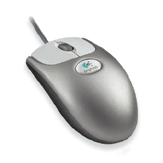
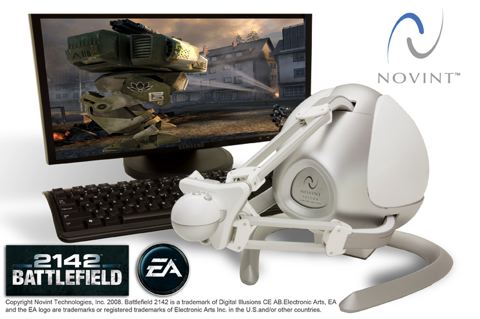
If you are using a TouchSense (haptic) device like
Logitech
iFeel Mouse or Novint Falcon, please quit
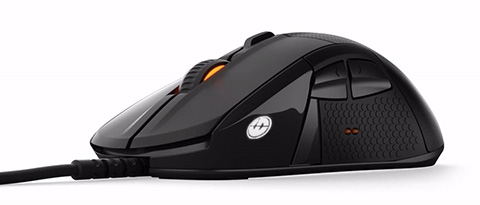
TouchSense Desktop/F-Gen before proceeding, but if you have a SteelSeries Rival 500/700 Gaming mouse, keep SteelSeries Engine running in background.
2. Start iFeelPixel™ by selecting it in the Start menu
or by double clicking the program icon on your desktop, then follow calibration instruction if you use a Novint Falcon.
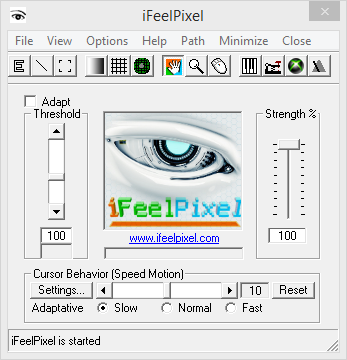
3. Look at the Toolbar,
select any features that interest you and test by moving the cursor.
4. Grasp the mouse/joystick/mobile and feel the relief of images in your favorite environment.
5. Adjust the Volume/Strength slider to the desired
level while playing around with images/sound.
6. Adjust the Threshold slider while
playing around with images.
7. Adjust the Cursor Speed slider while
playing around with images.
8. To Stop the application, click the Stop Button (To Restart the
application, click the Start Button)
9. iFeelPixel™ saves your settings by default, so they
can be automatically recalled the next time you launch the software.
To disable this function, uncheck option "Save settings on
exit":
File >> Settings >> Save Settings on Exit
10. About application in full screen: ALT + TAB out of your application
to adjust iFeelPixel™ settings if necessary.
11 . To quit the application, close the dialog box.
If
you don't feel sensations right away, read the troubleshooting
section below.
 Use
this as your first resource for finding solutions for many common
problems: Use
this as your first resource for finding solutions for many common
problems:
What
problem are you having?
Thank
you for trying out iFeelPixel™.
We understand that we do not make a perfect product,
if
your problem is not listed above, feel free to contact us with our
bug report or our
Forum.
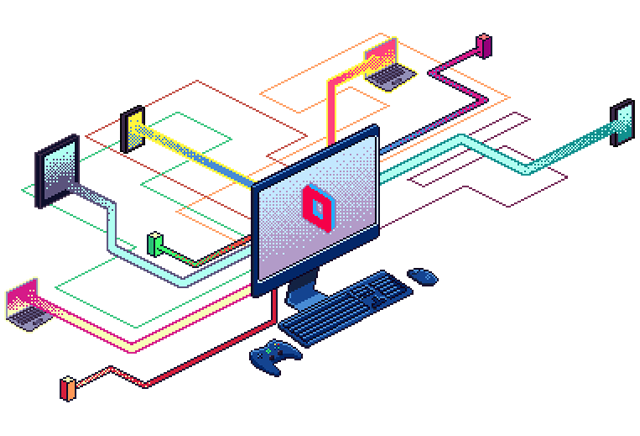
Registered members of iFeelPixel association can request a Remote Support with Parsec app:
Support, reports and tutorials
iFeelPixel™ report test
iFeelPixel™ report bug
Newest Third party software (Haptic Drivers and complementary third party products)
Older Third party software (Free software downloads, entertainment solutions)
Immersion TouchSense™ Fundamentals
How to Change the Primary Monitor on Windows 7/10 (Multiple monitor support)
Windows Accessibility Resources (Vision, Hearing, Neurodiversity, Learning, Mobility, Mental health)
Windows
Step by Step Tutorials for Accessibility
(Speech Recognition, Screen Resolution, colors of Desktop)
How
People with Disabilities Use the Web?
Use
Joystick as a Mouse
How
To use a WiiMote to control the pointer on screen?
Multi-user interaction on a standard PC
How to Turn on Mouse Keys in Windows 10
How
To Play a Computer Game in Windowed Mode?
 |
WarCraft
III Expansion: The Frozen Throne
Are you looking for
PC Games? |
 |
| |
Game title suggestions
Support for Movies
Question:
How to feel movies (divX, trailers, *.avi, *.mpg, etc...) from Windows
Media Player and other players that use overlay
technology?
Answer: A simple solution is to disable hardware acceleration for your whole
system.
Go to the Control Panel,
choose DirectX,
select the Direct Draw tab, and then verify that "Use Hardware
Acceleration" is unchecked.
Summary: Disabling Hardware Acceleration System Wide (= disabling overlay technology)
If
the option to enable/disable acceleration is not available, your
video adapter might not support DirectX acceleration in hardware
or you might need to install updated drivers.
Disadvantage: Some graphics-intensive programs run slowly
or not at all if DirectDraw hardware acceleration is unavailable
or disabled.
Also,
DVD players usually require hardware acceleration to run.
You may not be able to watch movies from a DVD player.
Alternative solution: install FFdshow codecs, PotPlayer or KMPlayer to feel pixel from video.
Tip: disable iFeelPixel zoom, for better graphic performance
Question: So, how to feel DVD movies with iFeelPixel software?
Answer: Either get a DVD decoder that does not use overlay technology OR allows you to
not use overlay like Nvidia DVD decoder (Free 30 days trial).
Interact
with your favorite movie or TV show! Movie title suggestions:
 |
The
Lord of the Rings - The Return of the King (Widescreen Edition)
Are you looking for
DVD's? |
 |
| |
Feel TV!
When using iFeelPixel in combination with a television card for
your PC, it allows you to feel live television images as they are
broadcast, or VCR recordings of the video in earlier television
broadcasts or movies.
 |
Airflow
The ultimate way to watch your videos on Chromecast, Apple/AirPlay 2 enabled TVs.
|
|
| |
 Note about overlay technology: Note about overlay technology:
TV cards use the overlay
technology to display image. iFeelPixel can't work with the
overlay technology enabled. This method actually sends a video signal
on top of your video card in a way that the pixels are not actually
in your video card's memory. iFeelPixel grabs pixel info straight
from the video memory. Please try to disable
the Hardware Acceleration of your TV card. (Thanks to Schido
and Bill for this note)
Immersion and FeelRobotics Sign Agreement to Advance Sex Tech Devices and Content With New Interactive Two-Way Haptic Experiences to bring people closer together. Kiiroo devices are compatible with ufeel.tv
This
support is based upon TWG
help model, created by Immersion
Corporation

History
of Immersion Corporation
|