This
slider controls the sensitivity to pixel noise of iFeelPixel™.
Although iFeelPixel comes with default slider settings, it is highly
recommended that you calibrate the slider settings to your own liking.
To
calibrate the sensitivity, follow these steps and refer to the illustration
below:
Press the "Play" button. Press the "Edge detection"
button.
Open
Help >> Comments and Suggestions, it opens a new browser with
some image examples. Move your mouse, over the first image then
the next image. Compare the feelings and adjust the Threshold
consecutively. If you can feel something, iFeelPixel™ detects
one edge. If there is too many noisy pixels, increase the Threshold
value.
Adjust
the Threshold Slider as necessary until you only feel a
sensation corresponding to the image and not a constant buzzing.
Use
the "Volume / Strength" slider to adjust
the sensations as you like.
Helpful
Tips:
In
most cases you will find that default settings yield the best sensations
(as shown in the illustration above). But exact setting depends
on the intensity composition of the image you are seeing, so play
with the setting until it feels good on your
computer.
You may find that different images feel better with different settings.
Good settings = good entertainment.
Note: you can try to check the "Adapt" checkbox
Adapt
This will enable the adaptive thresholding, iFeelPixel will calculate
a suitable threshold at different parts of the image.
If
you are unable to adjust the sliders so that the effects match the
image, proceed to the Sensations Do Not
Match Image page in the troubleshooting section.













 Threshold
Slider
Threshold
Slider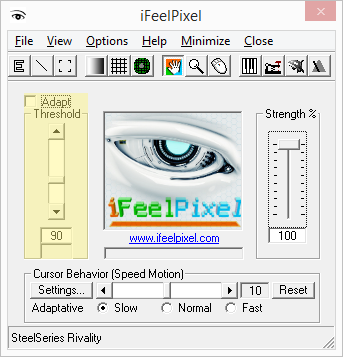
 Note: you can try to check the "Adapt" checkbox
Adapt
Note: you can try to check the "Adapt" checkbox
Adapt