|
Increase volume | Adjust sliders | Increase priority | Modify timer interval | Sensitivity Adjustment | Select direction | Modify Speed and Motion | Disable visual pointers | Novint Falcon Troubleshooting Basic
 Sensations
Do Not Match Pictures/Sound Sensations
Do Not Match Pictures/Sound
How
closely the sensations match the image/sound can be rather subjective.
If you have suggestions on ways to make the
effects better match the image/sound, please send them to us. Let's improve
the human-computer interaction (HCI) !
Adjust
the Master Volume and other volume controls. TouchSound will automatically adjust to most volume levels, but if the volume is too low, much of the sound may be dismissed as background hiss. You can manually adjust the Master Volume and increase other volume controls to fix audio problem.
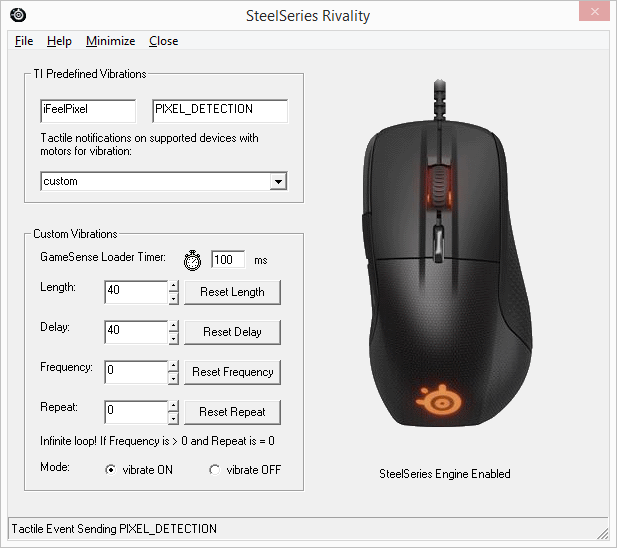
 Note for SteelSeries Engine: there is no master volume, but a list of predefined vibrations is available. Most of these effects have "softer" versions that feel softer. Any effect suffixed _100 is the full power version of that effect, while a different number suffix indicates relative strength on a percentage basis. Note for SteelSeries Engine: there is no master volume, but a list of predefined vibrations is available. Most of these effects have "softer" versions that feel softer. Any effect suffixed _100 is the full power version of that effect, while a different number suffix indicates relative strength on a percentage basis.
Open iFeelPixel interface > Options >> SteelSeries Rivality >>> Select Effect in listbox
|
|
Try
increasing the priority of iFeelPixel TactileWare. iFeelPixel
can operate as a high priority application, because image
samples must be taken regularly and processed immediately
in order to generate realistic sensations. If another application
you are running is at the same or higher priority, you may
experience a constant buzzing caused by infrequent updates
of the device. In many cases no performance problems will
arise, but it is recommended that you fully understand how
changing an application's priority will affect its execution
before performing this step.
View
>> CPU priority >>
- Real Time (Use it with caution)
- High (Recommended)
- Normal (Safe)
For Tactile Mobile Users:
Options > Tactile Mobile
VibeTonz Commands > Device Priority >>
- See Priority
- Decrease priority
- Increase priority
|
Try
increasing or decreasing the timer interval of iFeelPixel.
iFeelPixel can operate as quickly as you wish, because
image samples must be taken regularly and processed immediately
in order to generate realistic sensations.
View
>> Timer Interval >> Enter new interval (Milliseconds)
in the textbox
The Novint Falcon has his own timer. By default it is automatically controlled by main timer, but it can be manually controlled by the user in the Novint Options.
Tip:
1 Millisecond (or under 10) is the better choice for realistic impressions
of audio-haptic forces. |
Sensitivity adjustment in the Novint Options menu.
Options >> Novint Falcon...
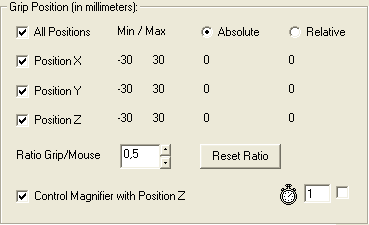
You can choose between absolute grip position or relative grip position (Relative position is useful to know the grip direction).
You can adjust the ratio between falcon grip and mouse (cursor on screen).
Range: 0,1 to 1,0. Recommended value: 0,5.
You can modify timer interval. Range: 0 to 999 milliseconds.
Fastest value: 1 ms (Recommended for Falcon users, better realism and improved acuity).
|
Select Velocity direction, speed direction or acceleration direction.
Options >> Novint Falcon...
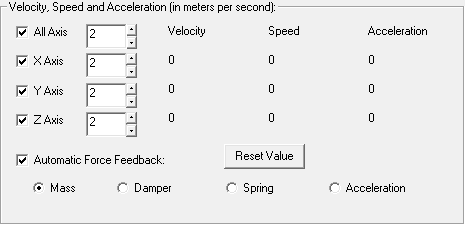
The Force Feedback effects can be manually or automaticaly generated, they are based on your selection:
Mass is the quantity of Inertia possessed by an object or the proportion between Force and Acceleration refered to in Newton's second law of motion.
Velocity's sign indicates direction, whether its positive or negative (Axis: X, Y, Z).
Speed is the absolute value of velocity. It cannot have a positive or negative sign (Axis: Z).
Acceleration's sign indicates direction, whether its positive or negative (Axis: X, Y, Z).
"No Mass" disables Force Feedback. |
Modify Speed Settings and Motion Settings.
Adjust the speed slider and motion slider to see if the sensations become better.
File
>> Force Settings...
Options >> Novint Falcon >> Falcon Commands >> Force Settings ...
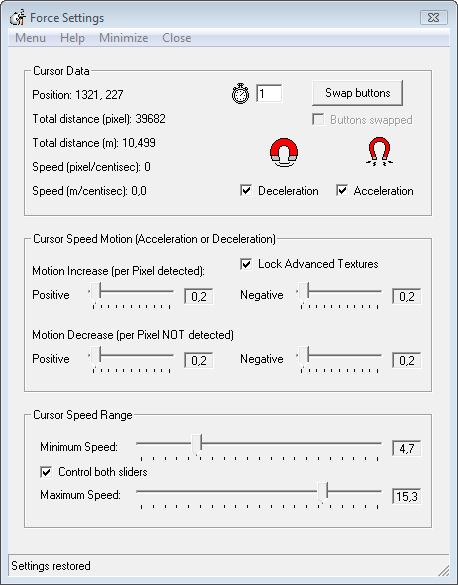
For visual force feedback, we recommend you to disable Mouse Acceleration in Windows.
How to adjust the Cursor Speed? |
Recommendation
for RSI Guard and others software with special visual pointers:
. Please disable "Show
visual feedback for AutoClicks" - If enabled, AutoClick
will show visual pointers that indicate how soon AutoClick will
automatically click.
This is very helpful, especially if you do not have the audible
clicks setting enabled.
But visual feedback is not recommended with iFeelPixel
software, because it generates bad pixel information under the
cursor and pixel detection feature is
misled.
. Please disable visual pointers or visual feedback under the
cursor in others software. |
Novint Falcon Troubleshooting Basic:
- Novint Falcon Calibration
When starting this software, the Falcon shows a red light, which means that the controller is initiated but has not been calibrated. It does this each time a software is started. To calibrate: Push the handle as far as you can inwards towards the light display with the Novint logo. Pull the handle straight out against you. Repeat until the Novint logo turns blue.
Novint Falcon FAQs
Novint Falcon Support
How do I “reset” my Novint Falcon?
What should I do if the Falcon becomes un-calibrated?
What should I do if the Falcon grip shakes uncontrollably, or otherwise feels unstable during game play? |
|