|
Helpful Tips | HyperTouch | Multiple Mice | Button Control
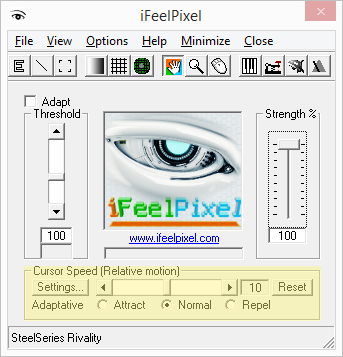
 Cursor Behavior (How to adjust the Cursor Speed?) Cursor Behavior (How to adjust the Cursor Speed?)
This
slider controls the speed of the cursor: it determines how far the pointer moves on the computer in response to how far you move the mouse.
By default, Attraction Effect is selected, but you can modify this setting to your own liking.
To
automatically adjust the cursor speed, please select between the following radio buttons:
- Slow/Attract (Attraction Effect, Deceleration Sensation): Cursor will move slower if Pixel of interest are detected.
- Normal (Normal Effect, No sensation): Cursor speed is reseted to default value (10).
- Fast/Repel (Repulsion Effect, Acceleration Sensation): Cursor will move faster if Pixel of interest are detected.
Helpful
Tips:
- For Novint Falcon owners, you can press Top Button to switch between primary effects (Attraction, Normal or Repulsion). See Novint Falcon Options for more information.
- If
you wish to optimize the advanced sliders so that the sensations match the
image, proceed to the Modify Speed Settings and Motion Settings page in the troubleshooting section.
- How To Video: Disable mouse acceleration, windows 7, 8, 8.1 and 10 by ShavedApe
- You can disable it within Force Settings > Mouse acceleration > AccelSwith ON/Off/Toggle . If you receive an error, please allow AccelSwitch in your Antivirus settings (v.2.1.8)
- SteelSeries Engine v3.11 added the ability to set mouse acceleration and scaling on Windows to optimal values
Hyperlink Detection (HyperTouch) with Tactile Alerts
For the best haptic feedback, we recommend the SteelSeries Rival 500/710 Gaming Mouse
Augmented Operating System notification service via cursor State
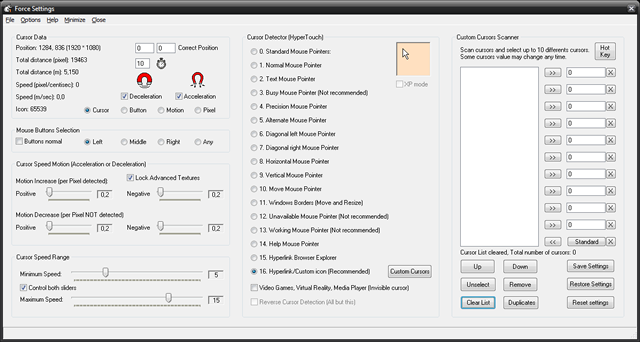
"Correct Cursor position" v.2.8.5 Correct Cursor X-Y Coordinates (Numbers: 0 to Screen Width/Heigth, Sign: + or -). Useful feature for Video Games that use custom cursors.
"Enable/Disable HyperTouch" Cursor detection for Browser, Button detection for Video game, Motion detection for Desktopn, Full Pixel Detection (Warning; CPU intensive).
"Mouse Buttons Selection" choose the Button you want to detect: Left/Right/Middle/Any
"Customize Cursor Detector" choose the Cursor you want to detect:
"Standard mouse pointers" will find only default windows cursors. Feel all the Desktop.
"HyperLink/custom mouse icon" is recommended. It enables you to feel hyperlinks in any browser (Chrome) and special cursors in any application (Photoshop).
"Windows borders" includes: Vertical, Horizontal, Diagonale Left and Diagonale Right. it is really useful to Move and Resize any window.
"Text Mouse Pointer" allows you to feel text input fields, in search box, in any browser and any app.
"Busy/Unavailable/Working Mouse pointers" are not recommended. Haptic Feedback may slow down during process activity.
"XP mode" is never enabled. It is only checked for backward compatibility purposes. It detects cursor state on different Operating Systems (Windows XP, Vista, 7 ,8, 10). An invisible window stay on top to make a list of available cursors.
"Collision detection for Virtual Reality/Video Games/Media Player" (PRO edition/Donation version). Even if the cursor become invisible, the pixel detection is still functionning for VR Apps, Video Games and Media Player.
When you start a video game or VR apps, the real cursor is in hidden state and you will see a custom cursor, for example a sniper crosshair. Same thing happens for a media player, after a while the cursor is hidden, to let viewers watch the movie
So this feature allow to do pixel detection (Edge/Color detection, Texture generation, etc...), even if the cursor is hidden.
"Reverse Cursor Detection (All but this)" is enabled when you select individual cursor. This allows to reverse completely your selection. Feel every cursor else except the selected one.
Added in iFeelPixel v.2.8.3
"Custom Cursors Scanner" (PRO edition only) Scan cursor and select up to 10 differents cursors. Some cursors value may change any time.
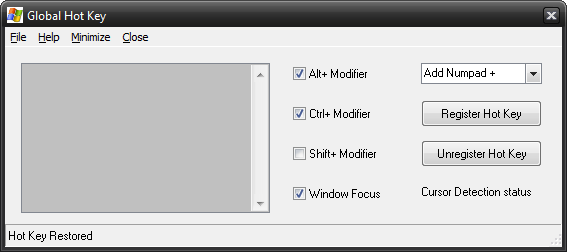
"Global Hot Key" (PRO edition only) A hot key is a key combination that the user can press to perform an action quickly.
For example, a user can create a hot key that capture a cursor value and pass it to a text box.
The hot key control displays the user's choices and ensures that the user selects a valid key combination.
Keep open this window to capture cursor value.
"Register Hot Key" Register Key combination that the user can press to capture cursor value.
"Unregister Hot Key" Unregister Key Combination.
Added in iFeelPixel v.2.7.2
Force Settings > File > Controller Settings
Force Settings > File > System Tray > Hide iFeelPixel Icon
Force Settings > File > System Tray > Taskbar Settings
Force Settings > Options > Show/Hide iFeelPixel
Multiple users on the same desktop with MouseMux (Third party software)
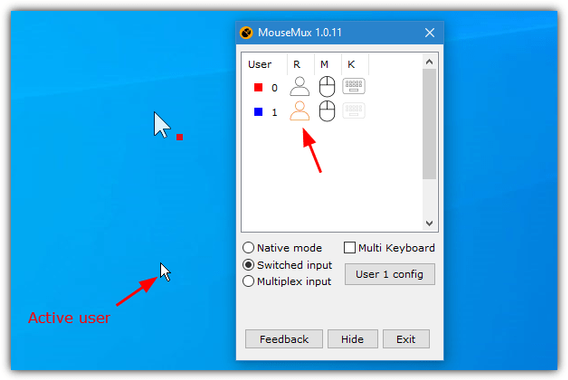
Our goal is to make working together as intuitive and simple as possible. Just add some extra mice and (optionally) keyboards and MouseMux will transform your PC into a multi-user system. The program will allow each independent user to type in different windows, drag or resize windows, and even allow fully simultaneous program interaction - all at the same time on the same windows desktop.
Pair up with another coder, designer or teammate on your machine. Each gets their own mouse pointer and can simultaneously work on the same Windows desktop. Collaboration was never so easy.
Use it for pair programming, collaborative designing, in the class or meeting room (so all can interact and have a presence on the screen). Join forces on editing documents, or in the control room so each operator can see where the others are.
Concurrently interacting with different apps on the same desktop creates new and interesting ways to work together; colleborate by taking over certain actions, type together, draw together - all at the same time without interfering each other.
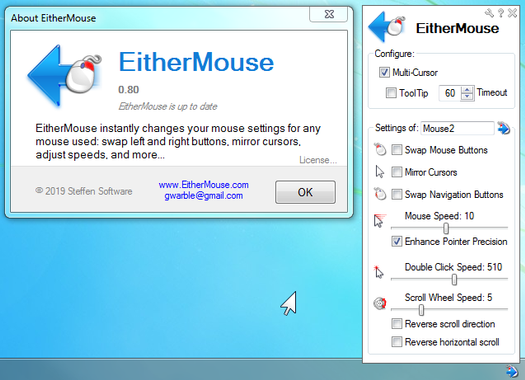
Multiple Mice and individual settings with EitherMouse (Third party software)
Instantly changes settings when any mouse is used (swap buttons,
mirror cursor,
adjust speeds
and more...)
Leave multiple mice on a pc and automatically swap buttons on each mouse.
Have a left-handed and a right-handed mouse always connected and ready to use.
Match speeds across different mice, ie touchpad and mouse with different speeds.
Accommodate left and right handed users easily on multi-user or public workstations.
Helps prevent RSI/injury issues by allowing seemless switching between hands.
Quickly change mouse settings from system tray if only one mouse is used
X-Mouse Button Control (Third party software)
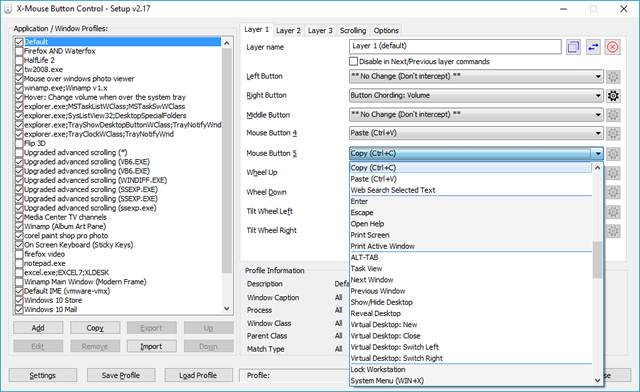
XMouse Button Control (XMBC) allows you to create application and window specific profiles. This in turn, allows you to re-configure your mouse behaviour for individual applications or windows. For each profile you can also configure up to 5 'layers' of different button configurations which you can switch between using hot-keys or mouse buttons.
By default, profiles are automatically activated as the mouse moves over the defined window or application.
This has many uses, for example:
. Changing the behaviour of the mouse over certain windows, such as making the mouse wheel change volume when hovering over the system tray or you-tube video.
. In games which do not natively support the extended, 4th and 5th mouse buttons, you can map keys to each button.
|