Uninstalling iFeelPixel Uninstalling iFeelPixel
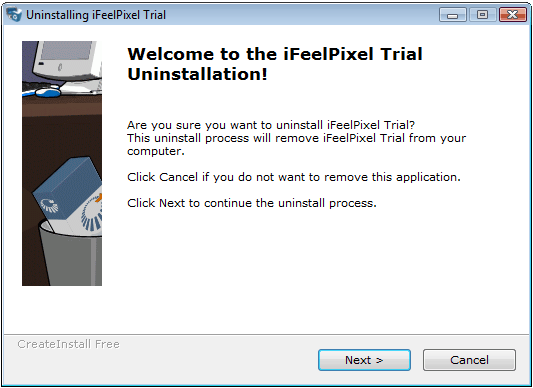
You can uninstall iFeelPixel software by following these instructions:
- Exit iFeelPixel software by right clicking on the task bar icon
- Open Add/Remove Programs in the Control Panel and remove the iFeelPixel module or choose the uninstall option in the iFeelPixel Program Menu.
|
 Note: to install or uninstall the latest SteelSeries Engine Driver for your Gaming Mouse, please click the following SteelSeries download link for your Operating System. Note: to install or uninstall the latest SteelSeries Engine Driver for your Gaming Mouse, please click the following SteelSeries download link for your Operating System.
Following points are for experienced user (version 0.8.2 and above until 1.5.3) but necessary for a perfect cleaning:
1. Start iFeelPixel, go to menu File > Application data folder.
Exit iFeelPixel, then delete all the data files you find in this folder.
Alternative solution: Launch a search on your hard disk for "iFeelPixel" folder in your "Application Data" folder, when you found it, open it and you can delete the folder where backup settings of iFeelPixel software are saved.
Note: please don't forget to delete the cached version of " ifeelpixel.exe" in the application data folder, before you install a new version! Otherwise, the old version will not be perfectly removed from your machine.
2. Empty your recycle bin
Following instructions are only for software version below 0.8.2:
1. For a clean uninstall, you should manually delete the file folder located usually at
"C:\program files\iFeelPixel" or "C:\iFeelPixel"
Like most software programs, iFeelPixel does add some entries to your registry which are not removed. They do not change the behavior of your PC once the application has been uninstalled. These entries should not be removed unless done by an professional computer user or specialized software.
2. Delete the registry key "HKEY_LOCAL_MACHINE\SOFTWARE\iFeelPixel" and its subkeys using
REGEDIT (Start >> Execute >> REGEDIT).
WARNING: Messing around with the Registry can be extremely dangerous.
If you accidentally delete the wrong part of your registry, you may make your system unbootable.
|