|
DualFeel Gaming | Haptic Tutorials | System Requirements | XInput wrapper | Third party files
 Xinput Simulation for Novint Falcon Xinput Simulation for Novint Falcon
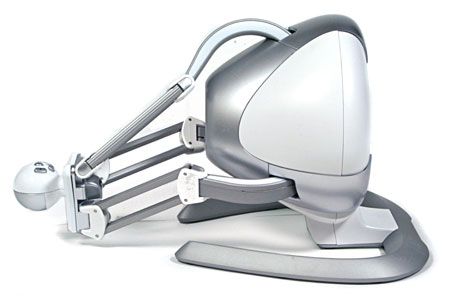
We can emulate the Novint Falcon 3D gaming mouse as a Xinput device, mute Native buttons and remap mouse buttons with Key2Joy or ReWASD. This way we can play video games with Xinput enabled.
Installations:
- Install Falcon drivers
- Install iFeelPixel
- Install Game Haptics Routers (GHR v14 is recommended and included in iFeelPixel setup)
- Install Key2Joy application to simulate a Joystick/Controller/Gamepad using your keyboard, mouse or other triggers.
- Alternative:
Install reWASD, a tool to use game controllers and supported devices
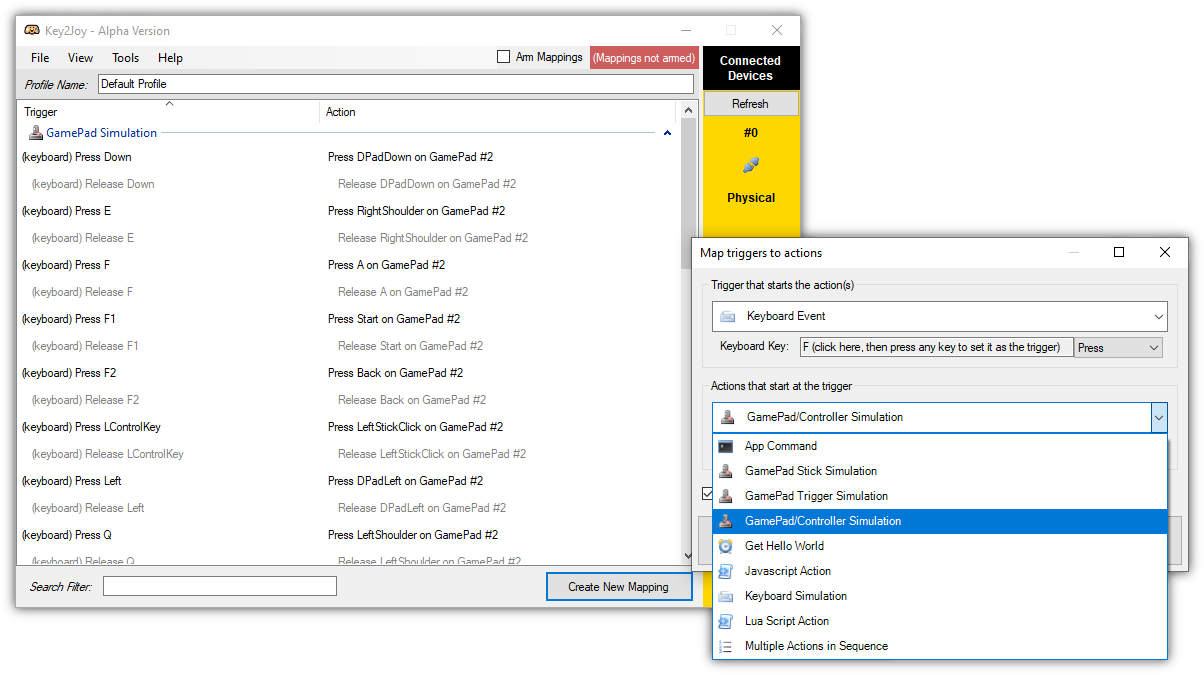
Using Key2Joy with a Graphical User Interface
- Start Key2joy and Accept installation of the Scp Virtual Bus Driver (First time only)
- Use the default mappings, modify them by double-clicking a row in the mapping-list, or add new mappings.
- A trigger is something that Key2Joy will listen for. E.g: a mouse move, key press, key release.
Default behaviour of a trigger is disabled by default. This means setting the left mouse button as a trigger will make it so you can't left-click anymore until you abort this app.
- An action is what will happen when that trigger occurs. E.g: simulating a joystick button being pressed, a keyboard button being released, or executing a Lua/Javascript script.
Select GamePad/Controller Simulation
- Click the Connect button for Key2Joy to start listening for triggers that will execute the configured actions.
- When you're done using Key2Joy, click the Disconnect button to stop listening for triggers.
In the default profile there is also a mapping that stops Key2Joy from listening using the Escape-key. Don't forget to include such a mapping for your custom profiles.
Note: Check out the Tips and Tricks category in the discussions for tips and tricks. Certain inputs may be tricky to configure, but there's usually a way to get it working.
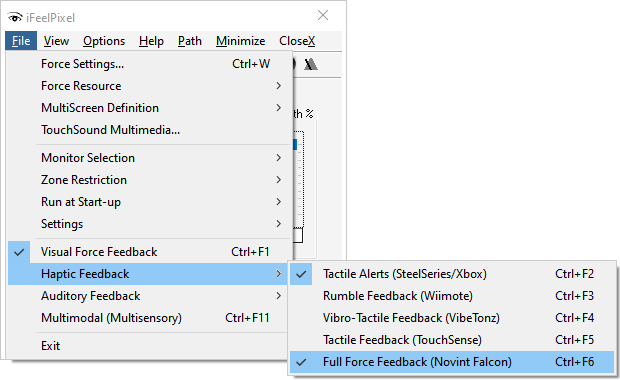
Instructions:
- Start iFeelPixel, make sure your 3D gaming mouse is plugged or connected before
- Check "Tactile Alerts (SteelSeries/XBOX)" in File menu > Haptic Feedback
- Check "Full Force Feedback (Novint Falcon)" in File menu > Haptic Feedback
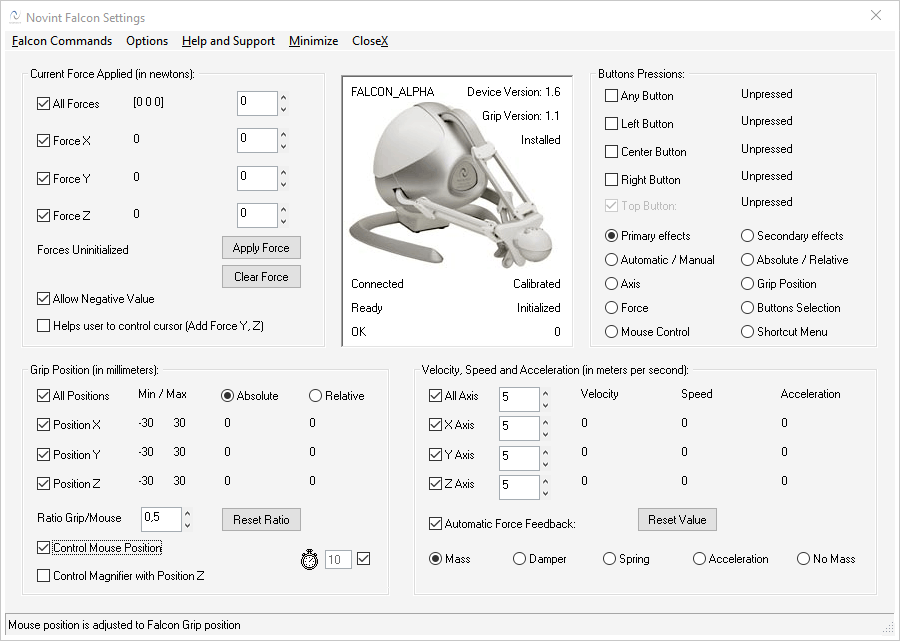
- Check "Control Mouse Position" in Options menu > Novint Falcon Settings
- Enable/Disable Button Effects feature of DualFeel Gaming, if you want or don't want to feel the rumble buttons, but only the Xinput signals sent by games
- How to select and attach a process/app/game (Xinput compatible)
- How to use Game Haptics Router and iFeelPixel together
- How to remap or unmap gaming mouse buttons (ReWASD only)
- How to tune virtual stick on mouse (ReWASD only)
- How to use mouse and keyboard for Xcloud games on PC (ReWASD only)
Using XInput with a Compatible Gamepad
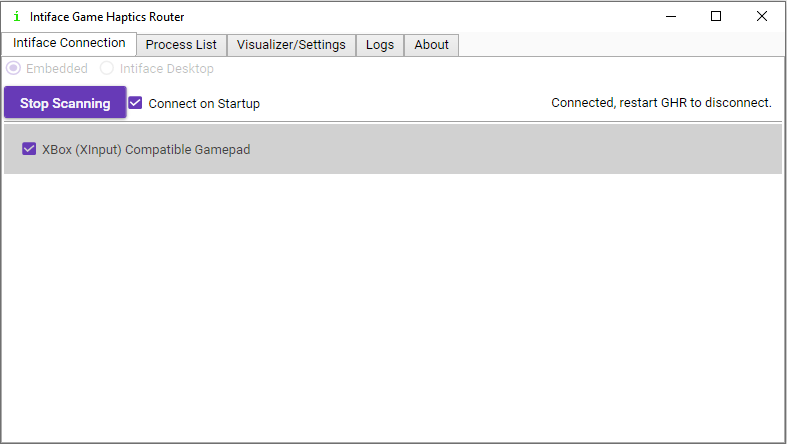
Optional: in Intiface GHR Connection tab, check "XBox (Xinput) Compatible Gamepad" to forward the Rumble Feedback to the Real/Virtual Xinput Controller created by Key2Joy/ReWASD.
Using XInput is as simple as calling the XInput functions as required. Using the XInput functions, you can retrieve controller state, get device IDs, and set controller rumble effects.
Multiple Controllers
The XInput API supports up to four controllers connected at any time. The XInput functions all require a User Index parameter that is passed in to identify the controller being set or queried. This ID will be in the range of 0-3 and is set automatically by XInput. The number corresponds to the port that the controller is plugged into, and is not modifiable.
Each controller displays which ID it is using by lighting up a quadrant on the "ring of light" in the center of the controller. A User Index value of 0 corresponds to the top-left quadrant; the numbering proceeds around the ring in clockwise order.

Warnings and Issues
- Anti-cheat mode can be triggered by GHR or Key2Joy in online competitive games.
- Please be careful using this tool in multiplayer games. It may be considered cheating and get you banned. Some games may only ban you after a while, so don't assume you're safe just because you haven't been banned yet.
- Alternative: Use the Rumble Buttons to Falcon Force Feedback feature.
- Issue between the Left / Right motor speed for the Force Feedback generated by the buttons. It will be fixed in the next version but meanwhile, you can manually modify the Motor speed. Simply decrease only the right or the left motor speed, but not both.
- Windows Themes: possible issue for Edge, Line, Corner, Color, Texture features when 4K UHD Display Scaling is enabled.
 Enable/Disable Buttons Effects feature : Enable/Disable Buttons Effects feature :
You may decide you want or don't want to use the Button Effects feature of DualFeel Gaming in some cases. To do so, there are different ways:
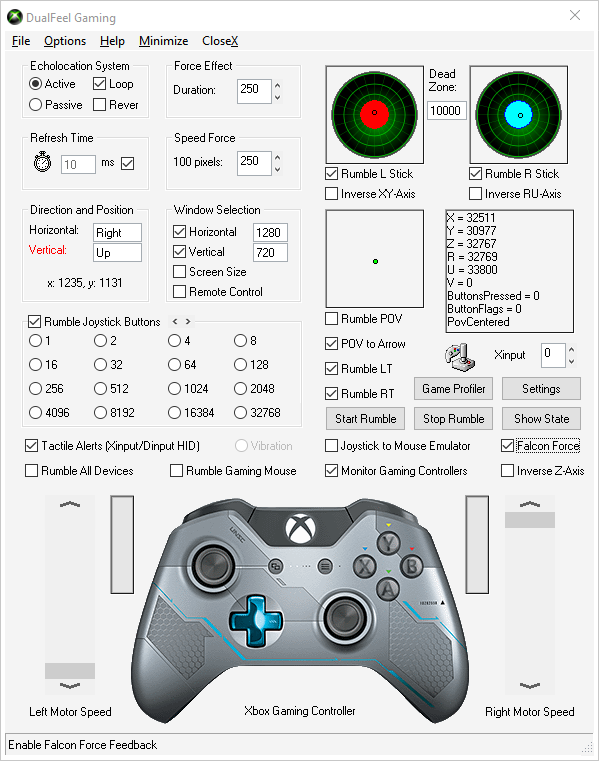
- Check/Uncheck "Rumble Joystick Buttons", "Rumble LR Triggers" and "Rumble LR Sticks"
- Check/Uncheck "Tactile Alerts (Xinput or Dinput HID)"
- Check/Uncheck the "Monitor Gaming controllers" option and close the window
- Check/Uncheck iFeelPixel > File > Haptic Feedback > "Tactile Alerts (SteelSeries/Xbox)"
You can Turn ON/OFF Force Feedback for Falcon 3D mouse to feel the gamepad vibration. If "Falcon Force" is checked in DualFeel Gaming, tactile effects will be sent to Falcon.
Helpful Tips
In most cases you will find that a gentle upward slope yields the best tactile sensations (as shown in the illustration above). Exact settings for each slider and range depend on the events of the app you are playing to and your computer's strength levels, so play with the settings until it feels good on your computer.
Many apps will allow you to adjust the strength of the controller independently from the effects strength. You may find that different apps feel better with different settings. So, it is recommended that you save your settings for each app you use.
If you are unable to adjust the sliders so that the tactile effects match the app, proceed to the Sensations Do Not Match Sound or No Sensations page in the troubleshooting section.
How to select and attach a process/app/game (Xinput compatible)
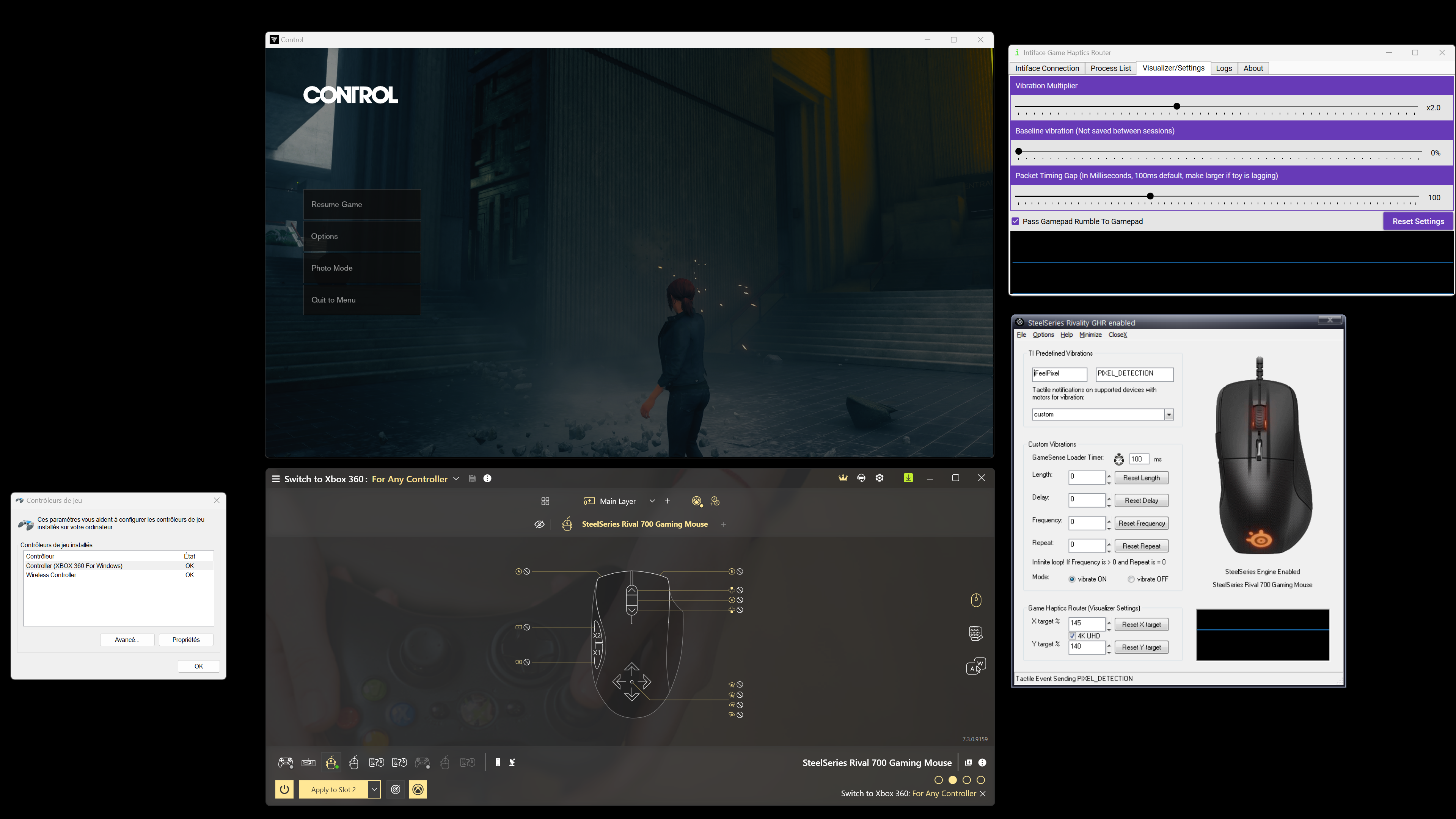
The Intiface Game Haptics Router allows users to reroute rumble signals intended for gamepads or VR controllers to various robotic adult devices. You can bypass Gamepad Rumble to Gamepad or gaming mouse with iFeelPixel. Here is a proof of concept for the video game "Control" :
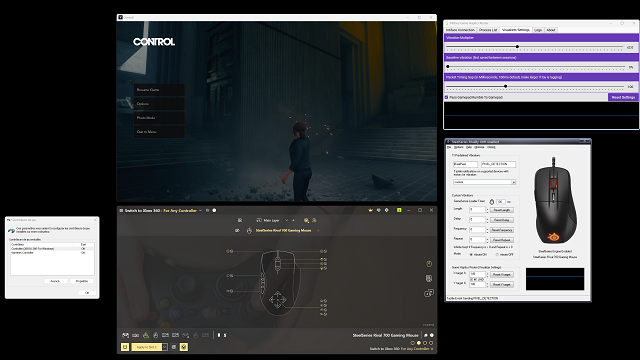
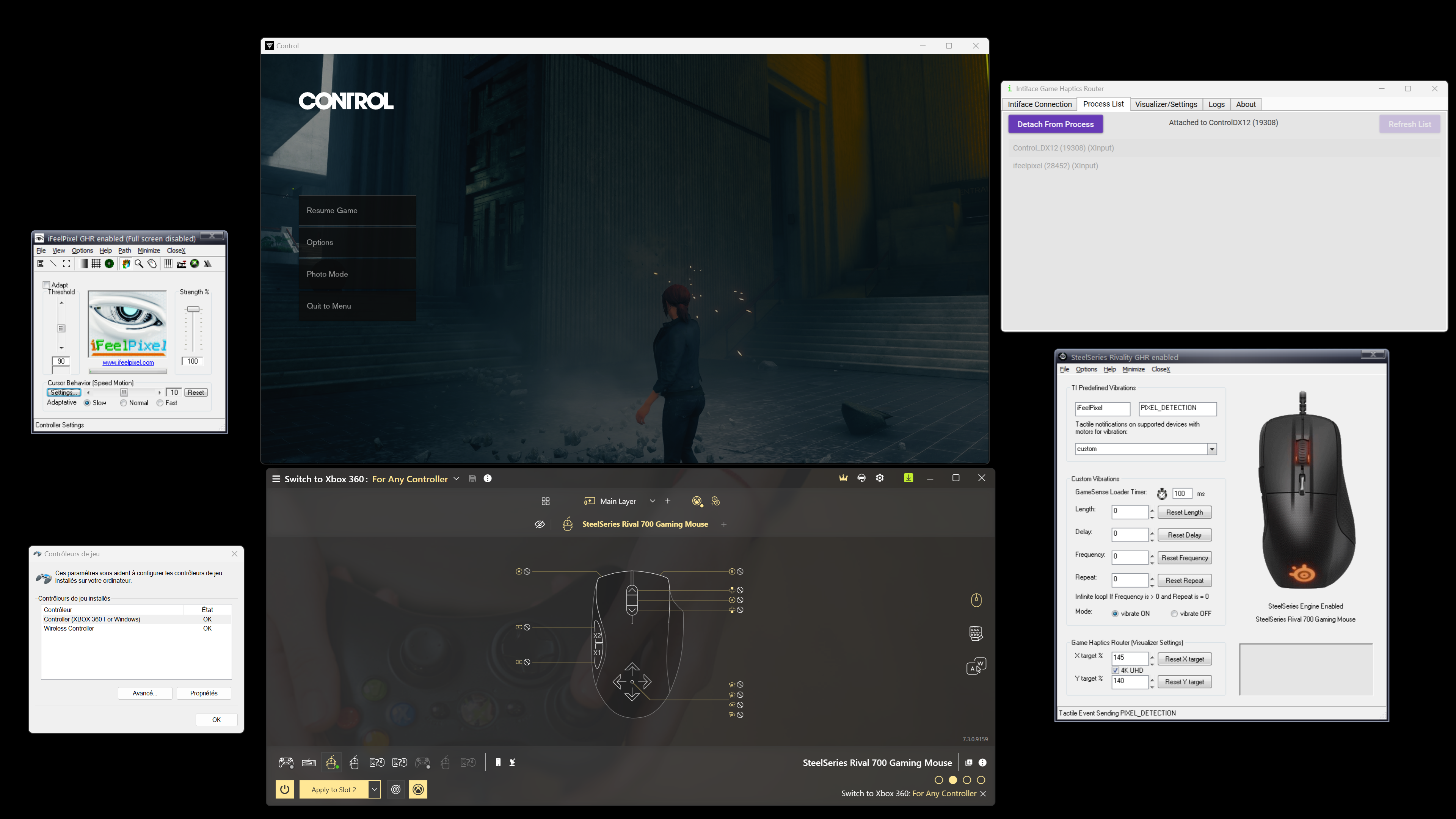
GHR is attached to the process "Control_DX12". It is intercepting the native haptic effects, you can see them on visualizer settings. It can be used for games with Story mode. It is not ideal and there are some limitations, but better to have a limited Xinput support than nothing at all.
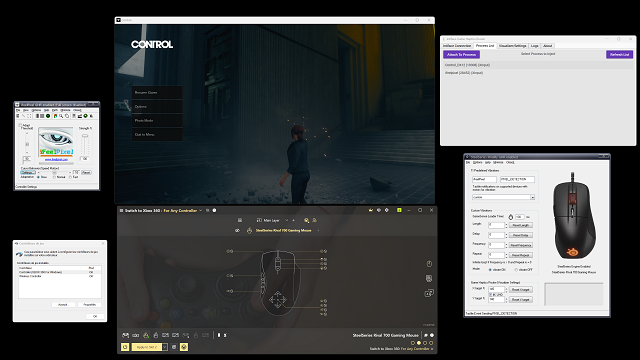
GHR is required to intercept the Xinput effects and iFeelPixel forward them back to the Rival 710 gaming mouse. We recommend to have a second mouse attached to the PC as safe backup to control the cursor on Windows.
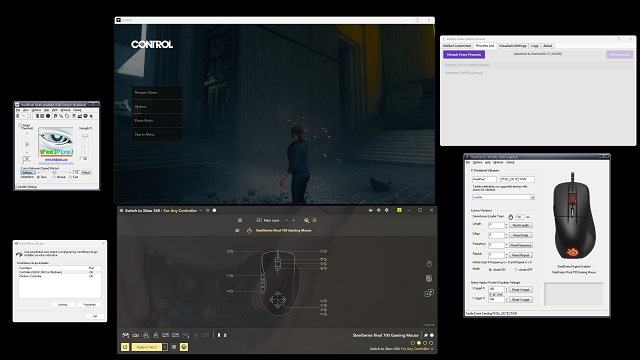
reWASD is a mapping software used to reassign the keyboard, mouse keys, and controller buttons. Check reWASD help guide to learn how to remap mouse and keyboard or use several different devices at the same time but only have one output visible for games.
How to use Game Haptics Router and iFeelPixel together
The Intiface Game Haptics Router (GHR developed by Nonpolynomial) allows users to reroute rumble signals intended for gamepads or VR controllers to various wellness toys. Using this method, many aplications and video games can be turned into intimate interaction environments, with some even allowing online, multi-player interaction.
Notice: GHR does not support directly the SteelSeries Rival Gaming Mouse. This requested feature has been postponed by the main developer. So we've added ourself the Xinput support for Rival Gaming Mouse. iFeelPixel app v3 can monitor the Visualizer settings of Game Haptics Router. That's mean you can feel tactile feedback games like an Xbox controller! We recommend to use it with offline video games (story mode only).
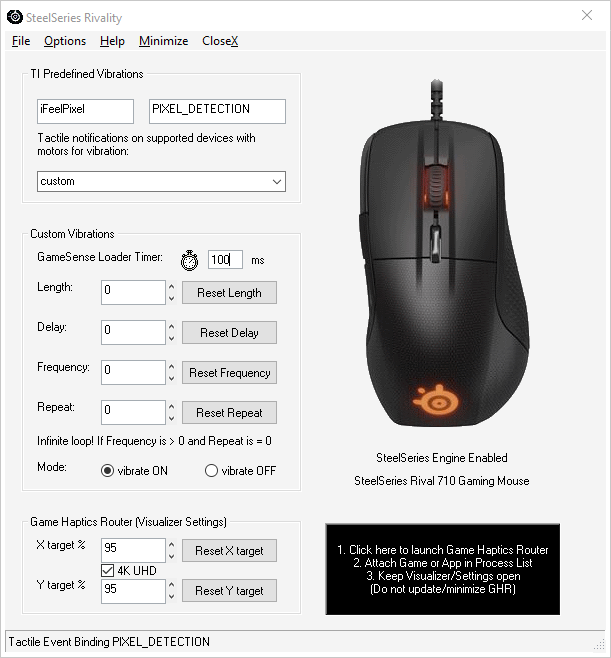
Game Haptics Router Instructions:
- 1. Click the Black Box to launch Game Haptics Router
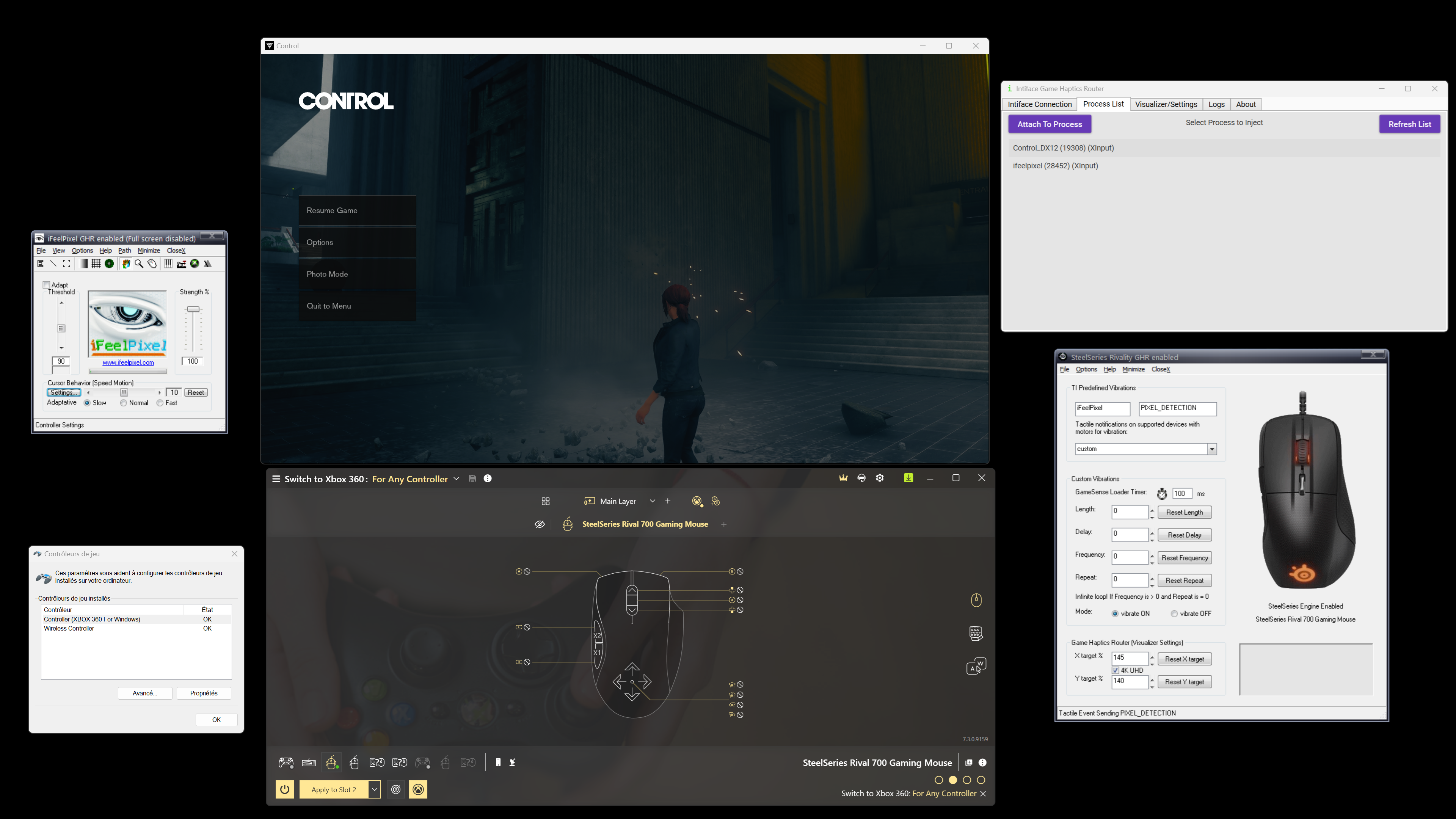
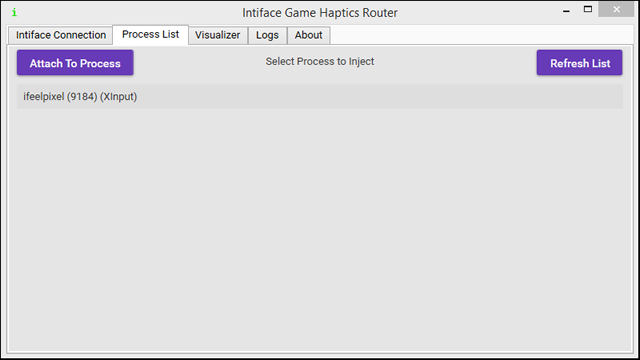
- 2. Attach Game or App in Process List
- 3. Keep Visualizer/Settings open
- (Do not update/minimize GHR)
Just attach the GHR to iFeelPixel Process (Enable Xinput in DualFeel Gaming) or any video games to start feel hyper vibes:
You can change Vibration settings under Vizualizer tab:
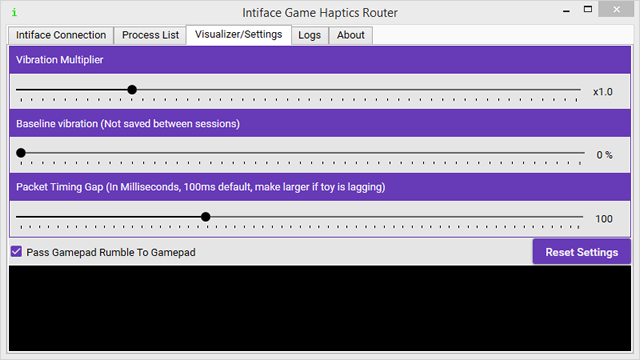
Vibration Multiplier (x1-5) | Baseline vibration (0-100%) | Packet Timing Gap (In Milliseconds, 100ms default, make larger if haptic hardware is lagging) | Pass Gamepad Rumble to Gamepad
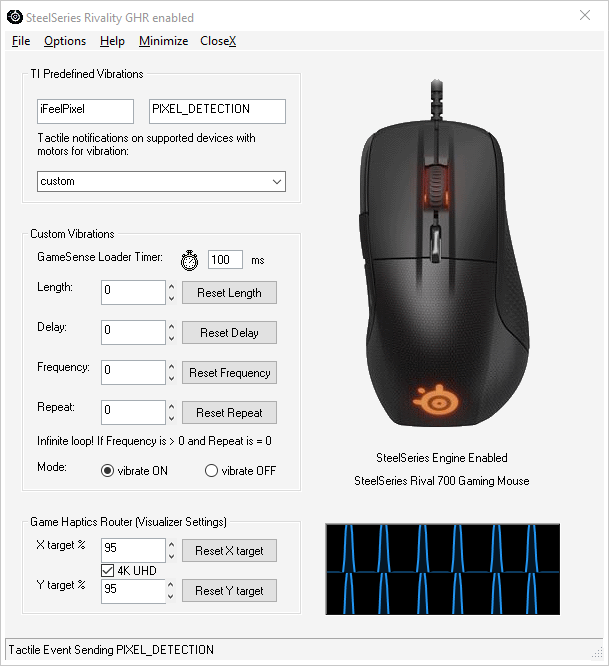
For other useful settings, see File > Haptic Game:
- Game Haptics Router (Launch GHR)
- Pixel Detection (Swith automatically the detection method)
- Disable 50% effects (Decrease the number of Tactile Effects sent to the mouse)
- Show Visualizer (Show or Hide the Visualizer in SteelSeries Rivality)
- Anti-minimizer (Keep GHR always visible and working)
Latest changes iFeelPixel version 4.0.0:
- SteelSeries: 4K UHD target percentage checkbox added
- SteelSeries: X/Y target percentage max value updated to 200% (was 100%)
- SteelSeries: Menu File > Haptic Games > Save target percentage
- SteelSeries: Menu Options > Windows Themes (Display)
System Requirements:
- Required processor speed depends on what other games or applications are running.
- Windows 7, 8, 10, 11
- Memory* 4GB (Minimum), 8GB (Recommended)
- A compatible force feedback gaming device: Xbox 360/One/Elite controllers have been verified
as compatible.
- A compatible force feedback 3D gaming mouse: Novint Falcon
- A compatible tactile feedback gaming mouse: SteelSeries Rival 500/700/710
- The latest drivers for your force feedback
device. (Please contact the manufacturer directly for updates.)
- DirectX version 9 and later
- Advanced users may disable vibration on Xbox pad. Just Download Xinput patched files then extract them in iFeelPixel app folder. Delete files if you want enable vibration again.
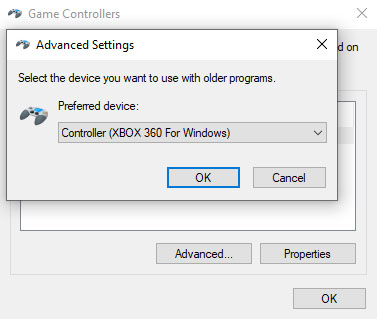
 Note: Select the force feedback device you want to use with iFeelPixel, if your prefered device is not selected/connected you cannot feel rumble effects Note: Select the force feedback device you want to use with iFeelPixel, if your prefered device is not selected/connected you cannot feel rumble effects
About XInput wrapper:
-
XInput wrapper for Game Maker by Jonne L.W. 'yellowsix'
- Adapted to be compatible with Visual Basic 6 by José Miguel (VB6Xinput.dll file)
- DualFeel Gaming released by iFeelPixel Association © Copyright 2002-2026
- Menu/Start Button + RB Button: Enable/Disable Joystick To Mouse Emulator
- Back/Select Button + LB: Enable/Disable Tactile Alerts on Xinput Devices
- DualSense Support Adaptative Triggers made by Mxater
- Key2Joy (Xinput) and VJoy (Dinput) are 2 different apps made by different developers
|