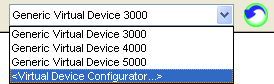
The Virtual Device Configurator is used to configure a virtual device to emulate a real handset that might not be available. You can configure the edition level for the virtual device, which determines the available capabilities such as whether the device supports one or multiple actuators; and you can configure the number and types of actuators present on the handset.
The configurations that you define and edit are persisted and will be available the next time you run . The virtual devices that you have configured will appear in the Device List.
To invoke the Virtual Device Configurator, select the <Virtual Device Configurator...> item at the bottom of the Handset List in the Toolbar.
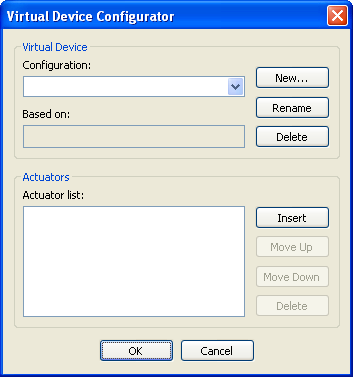
The Virtual Device Configurator GUI initially comes up with empty fields. After you define one or more virtual device configurations, those configurations will appear in the Configuration dropdown box. The Configuration dropdown box lets you select a configuration to edit. You can rename or delete the selected configuration, and you can configure the set of actuators that are part of the selected configuration.
To create a new configuration, click on the New... button next to the Configuration dropdown box. You will be presented with the following dialog.

You must provide a name for the new configuration; and select the edition level for the virtual device by selecting IVD_GENERIC3000, IVD_GENERIC4000, or IVD_GENERIC5000, which determines the Virtual Generic Device type on which the new configuration will be based.
After creating a new configuration, the configuration does not yet have any actuators. To add an actuator, click on the Insert button next to the Actuator list. You will be presented with the following dialog.
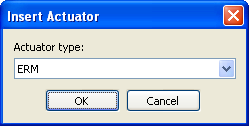
You can select the actuator type among the types that the supports.
After adding one or more actuators, you can reorder the actuators by clicking on the Move Up and Move Down buttons, and you can delete actuators.
Immersion and
are trademarks of Immersion Corporation.
All other trademarks are the property of their respective owners.
© 2010 Immersion Corporation.
Visit developer.immersion.com
for the latest in
news and information.