Getting Started

The following steps show how to quickly create and play an effect on an attached enabled device.

1. Device Selection

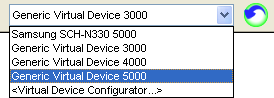
Use the Toolbar dropdown box to select a device. If the device is not shown, check your connection then click on the Refresh button just to the right of the dropdown box.

Note: If cannot detect an attached device, "Generic Virtual Device 3000", "Generic Virtual Device 4000", and "Generic Virtual Device 5000" will be the only selections available.
2. Effect Creation

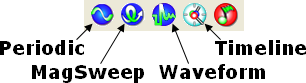
The Toolbar contains buttons for creating new effects: Periodic, MagSweep, Waveform, and Timeline.

Press a button to create an effect with default parameters.


3. Effect Playback

Effects in the current project are displayed in the List View pane.

Select an effect by clicking once on the icon in the List View Pane.

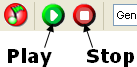
Pressing Play in the Toolbar plays the selected effect on the selected device.

To stop playback, press Stop.

The Application Basics section describes the graphical user interface. contains many features for customizing and building complex effects. These features are described in detail in the Reference section. Read the tutorials to find out how to create effects that match audio files.


Immersion and are trademarks of Immersion Corporation.
All other trademarks are the property of their respective owners.
© 2010 Immersion Corporation.
Visit developer.immersion.com for the latest in news and information.